

The Containers page provides direct access to all Docker containers on your system, including those not managed through deployments. This is useful for monitoring and managing individual containers.
Container List
The container list displays:
- Name — Container name
- Image — Docker image being used
- Status — Running, exited, created, etc.
- Health — Health check status (if configured)
- Ports — Port mappings
- Created — When the container was created
Filtering
Filter containers by status:
- All — Show all containers
- Running — Only running containers
- Exited — Only stopped containers
Container Actions
Actions available for each container:
| Action | Description |
|---|---|
| Start | Start a stopped container |
| Stop | Gracefully stop a running container |
| Restart | Stop and start the container |
| Logs | View container logs in modal |
| Stats | View resource usage |
| Remove | Delete the container (must be stopped) |
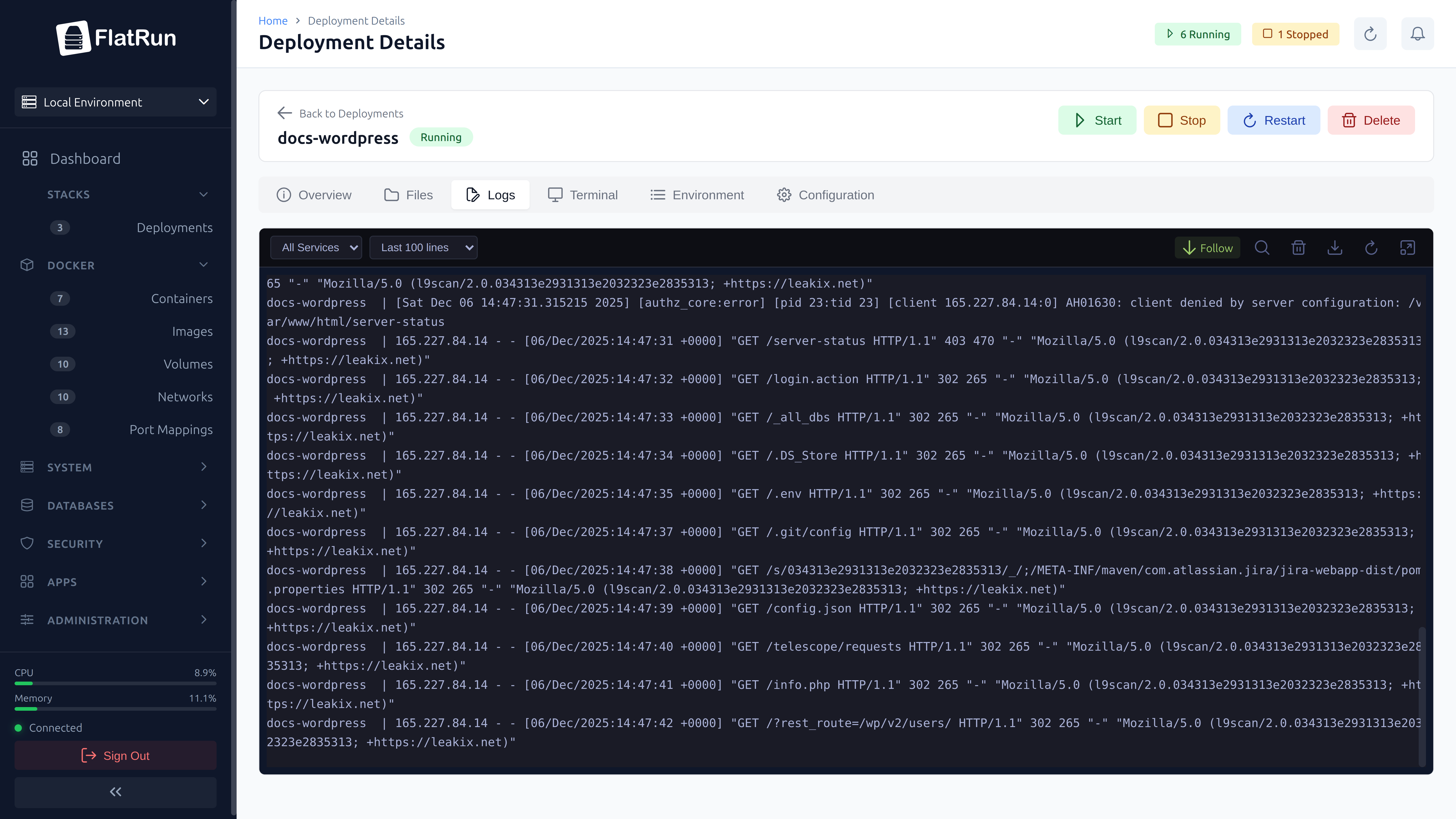
Viewing Logs
Click the logs action to open the log viewer modal:
- Tail Lines — Number of lines to display
- Follow — Auto-scroll to new logs
- Timestamps — Show/hide timestamps
- Download — Export logs to file
Viewing Stats
Real-time resource monitoring for a container:
- CPU Usage — Percentage of CPU being used
- Memory — Used memory vs. limit
- Network I/O — Bytes sent and received
- Block I/O — Disk read and write bytes
All Container Stats
Use the "Stats" button in the header to view resource usage for all running containers in a single view. This is helpful for identifying resource-heavy containers.
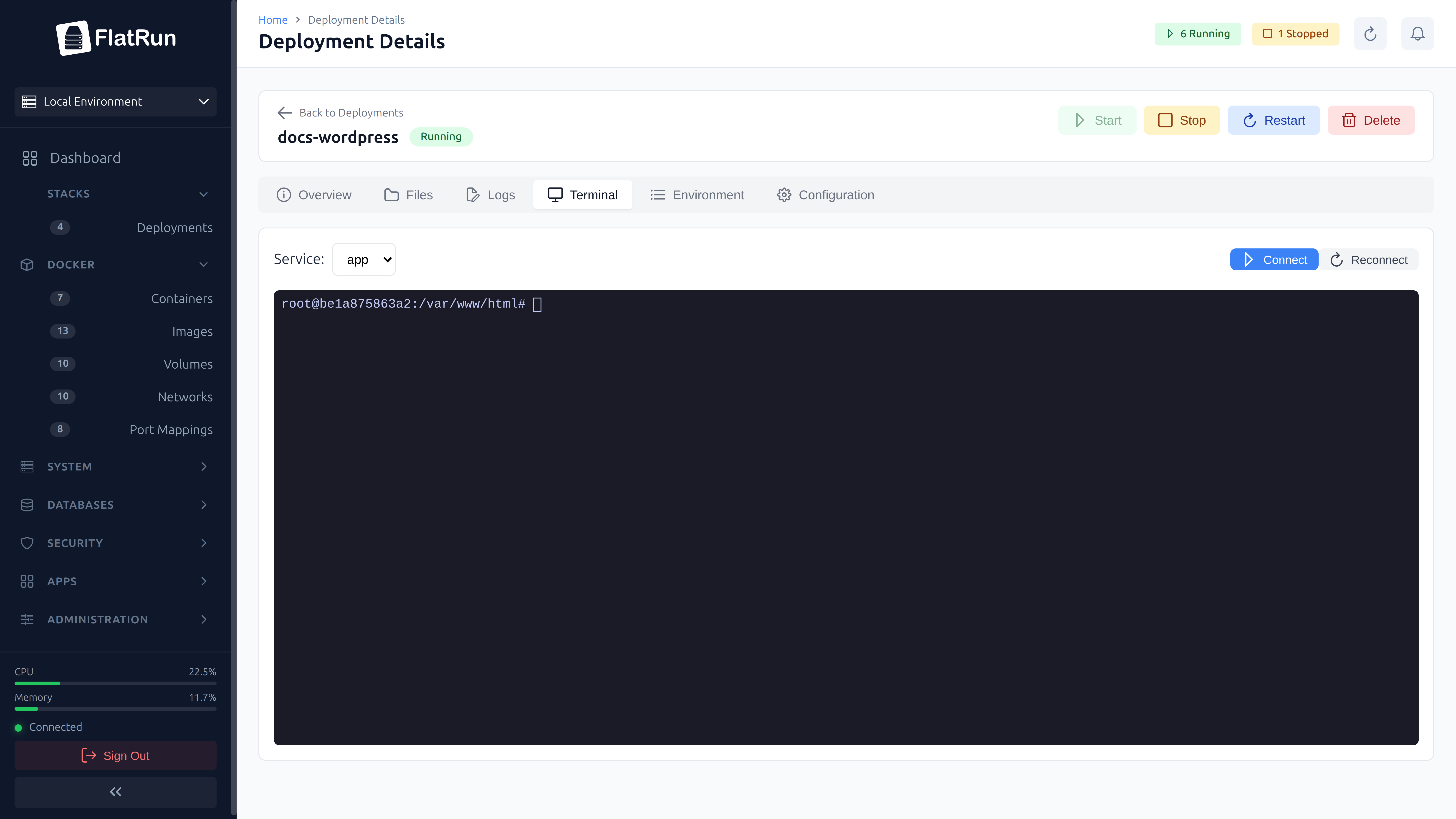
Terminal Access
Open an interactive shell session directly in your browser. Access the container's command line without needing SSH or local Docker access.
Related Docker Resources
The UI also provides management for related Docker resources:
Images
Manage Docker images:
- List all images with size and tags
- Pull new images from registries
- Delete unused images
- View image usage (which containers use it)
Volumes
Manage Docker volumes:
- List all volumes with usage status
- Create new volumes
- Delete unused volumes
- Prune all unused volumes
Networks
Manage Docker networks:
- List all networks
- Create new networks
- View connected containers
- Connect/disconnect containers
- Delete networks
Ports
Monitor port usage:
- Docker Ports — Ports mapped by containers
- System Ports — All ports in use on the system
- Identify port conflicts